Managing partners
Creating, changing, assigning and deleting business partners.
You manage business partners in the sidebar under Master Data: in PDFMAILER.FLOW Document Inbox under Suppliers, in PDFMAILER.FLOW Archive under Business Partners. Which buttons you see depends on your rights in the Master Data group.
Create a business partner
Create a business partner as soon as you deal with a new supplier or customer. The more details you store, above all the VAT ID and IBAN, the more reliably PDFMAILER.FLOW later assigns receipts to it.
- In the list of business partners, click Create partner.
- Under Basics, enter the Legal name and, if known, the VAT ID and Tax registration ID.
- Under Roles, choose whether the business partner is a Supplier, a Customer or both.
- If needed, add addresses, contacts and bank accounts with Add address, Add contact and Add bank account.
- Click Create partner.
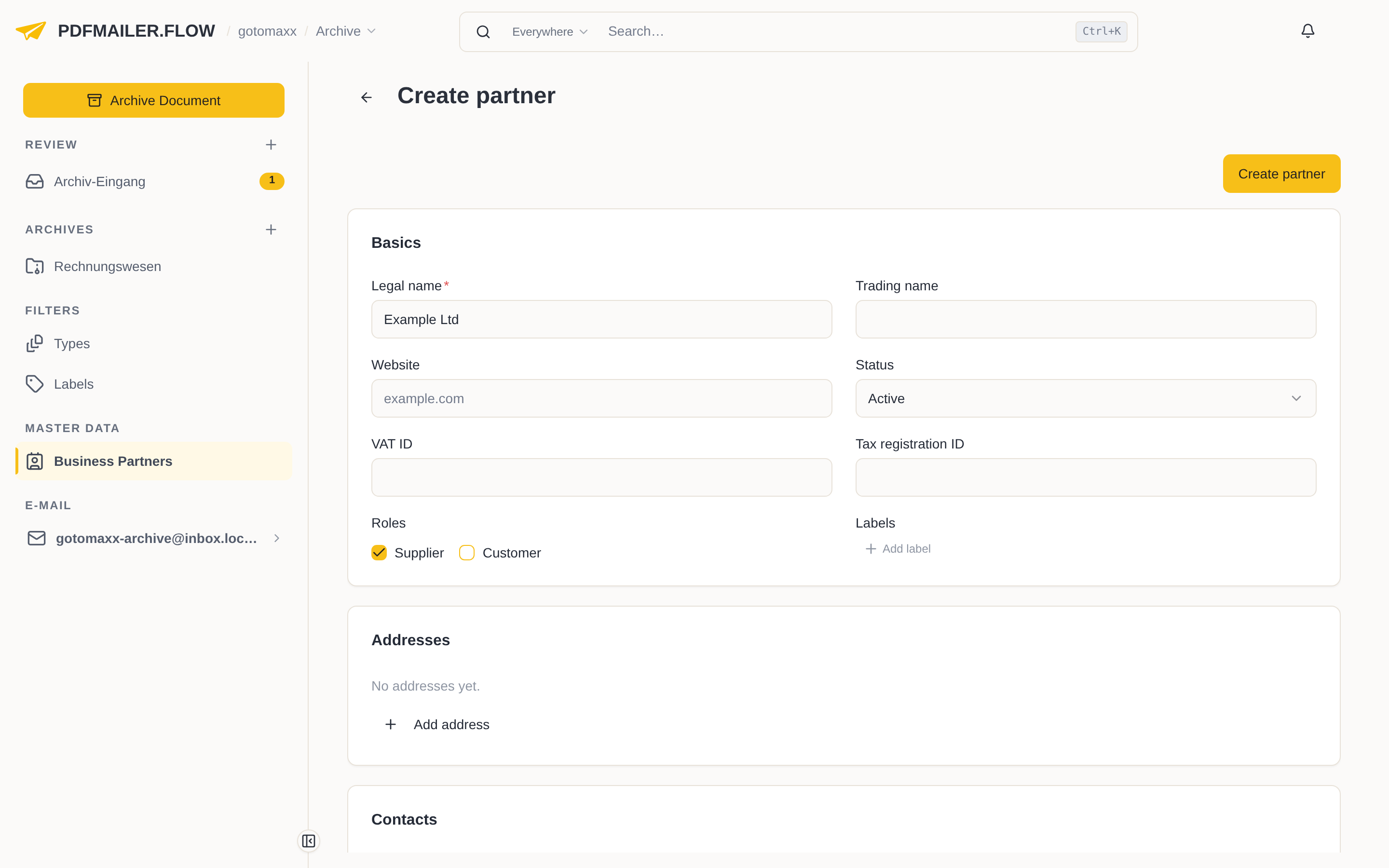
The business partner is now created and available in every app. If a website or a contact's email address is stored, PDFMAILER.FLOW fetches the company's logo automatically.
Change a business partner
Change a business partner when, for example, its address or its bank details have changed.
- In the list, click the business partner.
- In the section you want to change, such as Addresses, click Edit.
- Change the details and click Save.
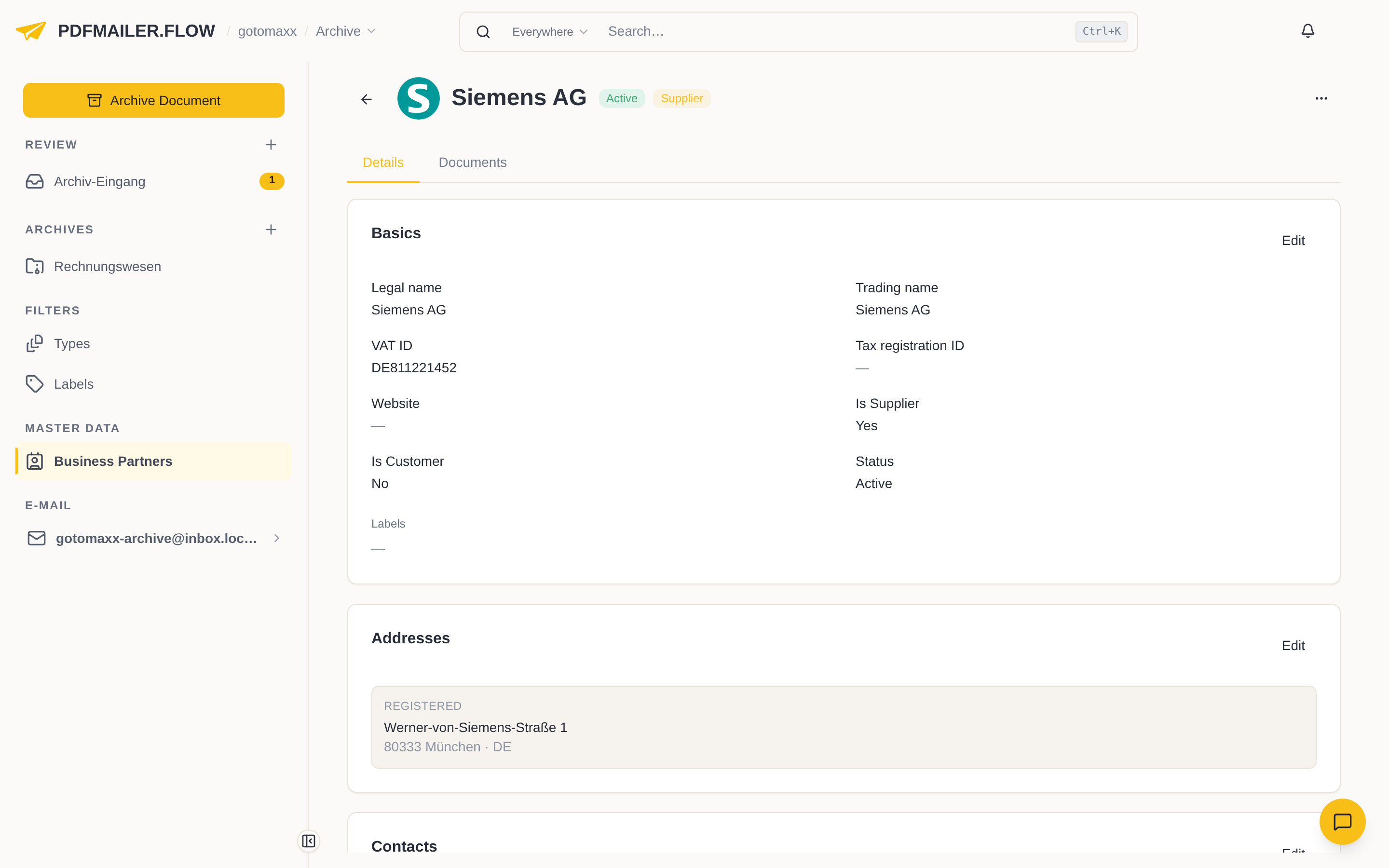
The change applies immediately in every app. If you no longer work with a business partner, set the Status under Basics to “Inactive”; it is then kept with all its documents and marked as inactive. The Documents tab shows all documents assigned to this business partner.
Assign a business partner to a document
If PDFMAILER.FLOW has found no business partner for a receipt or the assignment is not yet confirmed, you assign it during review.
- Open the document in review.
- If PDFMAILER.FLOW has suggested a business partner, click Confirm next to “Looks like …”.
- If no business partner or the wrong one is entered, choose the right one under Select a partner; the search finds it by name or VAT ID.
- If the business partner does not exist yet, click Create supplier, Create customer or, in the archive inbox, Create partner. The details from the receipt are already filled in there; check them and click Create partner.
The business partner is now assigned to the document. PDFMAILER.FLOW no longer changes an assignment by itself once a user has confirmed it.
Delete a business partner
Delete a business partner that was created by mistake or twice. The status “Inactive” is meant for a business partner you simply no longer work with.
- Open the business partner.
- Click … at the top right and choose Delete.
- Confirm with Delete partner.
The business partner is now deleted. This cannot be undone. If it is a party to an ongoing order, it can only be deleted once the order is completed.