Users and invitations
Inviting, deactivating and deleting users.
For a user to work with PDFMAILER.FLOW, you invite them to your organization by email. Which areas they see afterwards depends on the groups they belong to. You manage users in Settings under Users; this requires administrator rights.
Invite a new user
Before you invite someone, you should know what they will be responsible for. The groups you give them with the invitation decide whether they can, for example, review receipts, post them or work in the archive. You can change the groups at any time later.
- Click Invite user.
- Enter the user's email address.
- Check the selection under Groups and adjust it with Change.
- Click Send invitation.
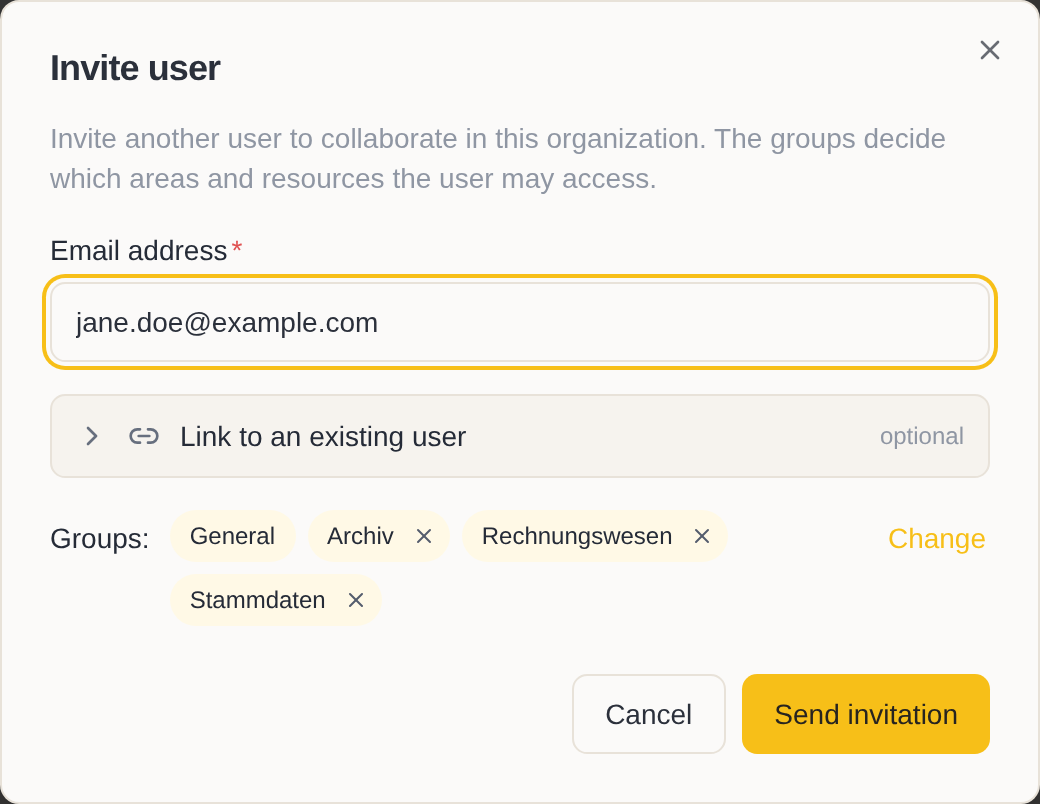
The user receives an email with a link. Through the link they create an account or sign in with an account they already have. Until they have accepted the invitation, they are shown in the list with the status “Pending”. The link in the invitation is valid for 7 days.
Resend an invitation
If the user has not received the invitation, first ask them to look in their spam folder. If it is not there, send it again:
- In the list, move the mouse over the user and click ….
- Choose Resend invitation.
The user receives the same invitation with the same link once more. This does not extend the validity of the link.
Revoke an invitation
Revoke an invitation if it went to a wrong address, if the link has expired or if the user is not going to work with you after all.
- In the list, move the mouse over the user and click ….
- Choose Revoke invitation and confirm.
The link is then invalid, and the user disappears from the list. To invite them with a corrected address or a new link, simply invite them again.
Deactivate a user
Deactivate a user who should no longer have access to your data, for example during a longer absence or after their last working day. Deactivating can be undone at any time.
- In the list, move the mouse over the user and click ….
- Choose Deactivate and confirm.
Access ends immediately: if the user is signed in, they are signed out. Their groups and everything they have worked on are kept. Tasks they had taken on go back to the other users so that nothing is left undone.
Reactivate a user
When a deactivated user returns, give them their access back:
- In the list, move the mouse over the user and click ….
- Choose Reactivate and confirm.
The user can sign in again and has the same groups as before the deactivation.
Delete a user
Delete a user when their personal data is to be removed from your organization, for example because they have asked for it. To block only their access, there is deactivating.
- In the list, move the mouse over the user and click ….
- Choose Delete and confirm.
The user's name, email address and profile are removed. The documents they worked on are kept in full, and what happened to them remains traceable; in place of their name, “Former user” is shown there.
Deleting cannot be undone.
Make an external person a member
If someone in your organization has shared a document with a person outside it, this person appears in the list with the type “External”. They see only the documents that were shared with them. If they are to work with you regularly from now on, make them a member:
- In the list, move the mouse over the person and click ….
- Choose Promote to member and confirm.
The person then belongs to your organization and takes up a seat in your subscription. What they have contributed so far is kept. You give them further groups as you would any other user, see Groups and roles.