Archives and folders
Structuring the archive clearly.
The archive is built like a filing cabinet: at the top level are archives, for example “Invoices”, “Contracts” and “HR”, and inside them folders, such as one per year or per supplier. You see the archives in the sidebar under Archives. Which archives you see and whether you may create archives and folders depends on your rights.
Create an archive
Create an archive of its own when an area of your records is to be accessible only to certain employees. For each archive you can set separately who may see it, so that, for example, only the HR department sees the “HR” archive. An archive can be renamed later; it cannot be moved or deleted.
- In the sidebar, click + next to Archives.
- Enter a name, for example “Contracts”.
- Click Create archive.
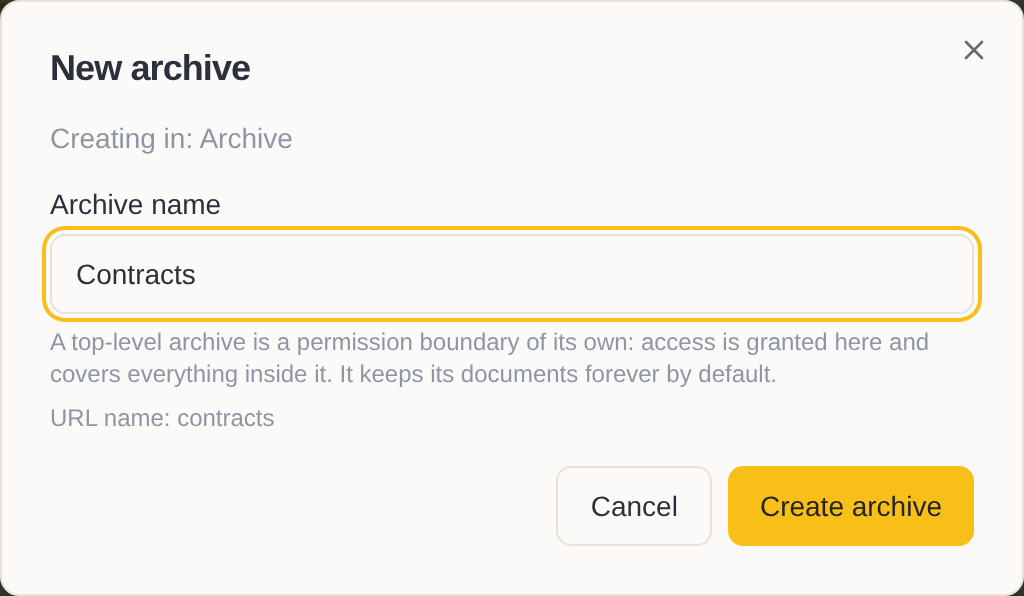
The new archive appears in the sidebar. Who may see it is set by an administrator under Groups and roles.
Create a folder
Structure an archive with folders the way you will search for documents later, for example by year or by supplier. A folder can also be renamed later, but not moved or deleted.
- Open the archive or the folder in which the new folder is to be.
- Click … and choose New folder.
- Enter a name and click Create folder.
The new folder is now created. Documents in it are retained permanently; an administrator can set for a folder that documents are deleted after a certain time.
Rename an archive or folder
Rename an archive or a folder when the name no longer fits its contents.
- Move the mouse over the archive or folder, click … and choose Rename….
- Enter the new name and click Rename.
Only the displayed name changes. Links to the folder that you have saved or passed on keep working.
Move documents to another folder
If an archived document is in the wrong folder, move it. You need administrator rights for this.
- In the folder, select the documents.
- Click Move.
- Choose the target folder and click Move here.
The documents are moved to the new folder. Their content and their retention period stay the same.