Searching the archive
Finding archived documents again.
You find a document even without knowing which folder it is in. Through the document type, the labels and the business partner you see matching documents from the whole archive at once, and the search finds documents by their content. Only documents you may see are ever shown.
Show documents of a type
Show all documents of a type when, for example, you want to look through all archived contracts, regardless of the folder they are in.
- In the sidebar under Filters, click Types.
- Click the document type, for example “Contract”.
The list shows all documents of this type from all folders. For each document you see which folder it is in and until when it has to be retained.
Show documents with a label
If you or your colleagues have marked documents with labels, such as “Urgent”, you find them again through the label.
- In the sidebar under Filters, click Labels.
- Click the label. If the label has values, then choose the value.
The list shows all documents with this label from all folders.
Show documents of a business partner
If you want to see all documents that belong to a supplier or customer, such as all invoices from Siemens, open the business partner.
- In the sidebar under Master Data, click Business Partners.
- Click the business partner, for example “Siemens AG”.
- Click the Documents tab.
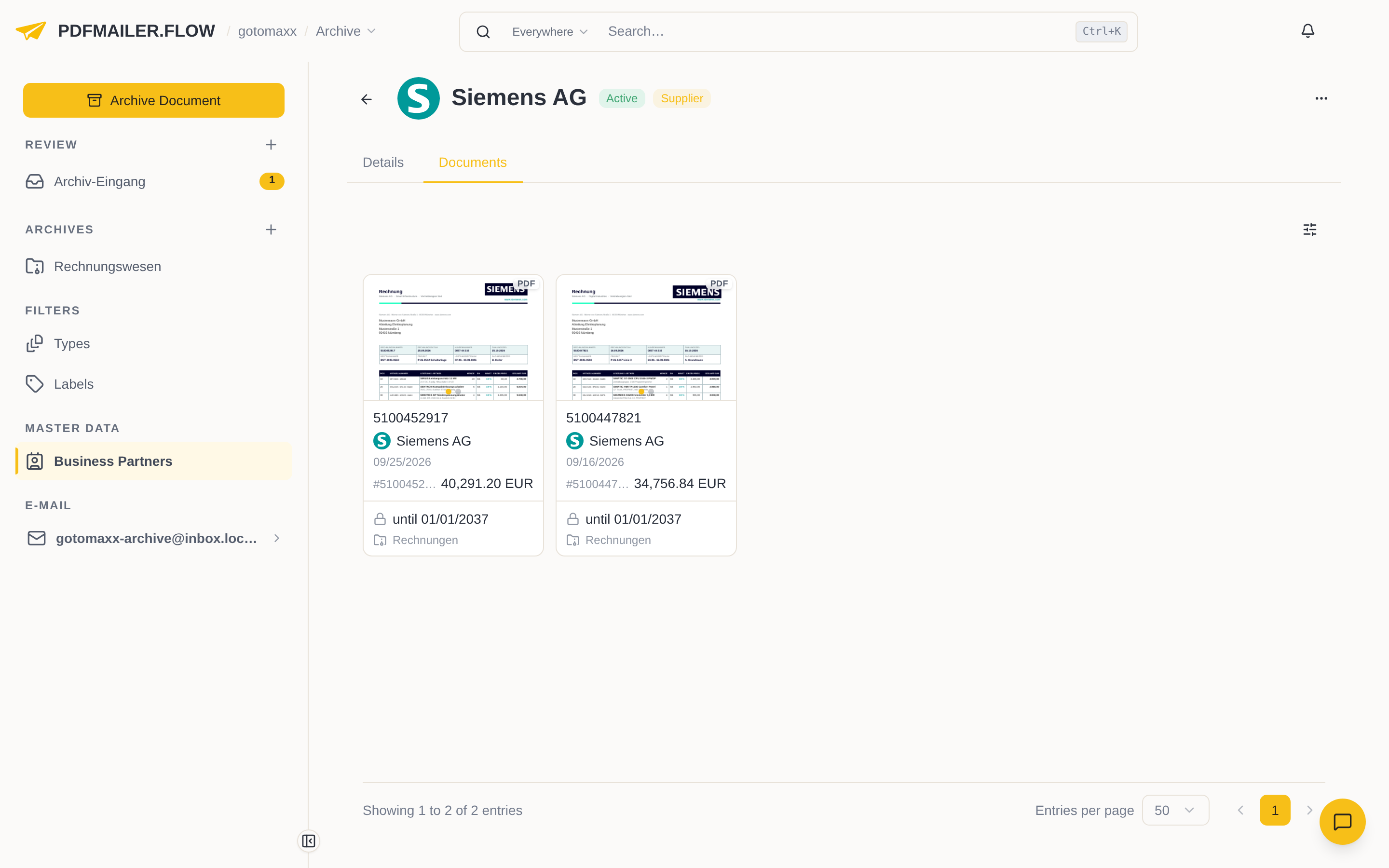
The list shows all documents assigned to this business partner, from all folders. For each document you can see which folder it is archived in and until when it is locked.
Search for a term
Search for a term when you know something from the content of the document, such as the supplier's name, the invoice number or a word from the text. You search with the field at the top of the header bar, which at first shows “Ask the assistant…”.
- Open the folder you want to search in, for example Rechnungen.
- In the field at the top of the header bar, click the icon on the far left. The field switches from the assistant to the search.
- On the left of the field, choose the scope: Here searches the opened folder, Everywhere all areas of PDFMAILER.FLOW you may access.
- Enter the term, for example “Siemens”.
- Click the document you are looking for to open it.
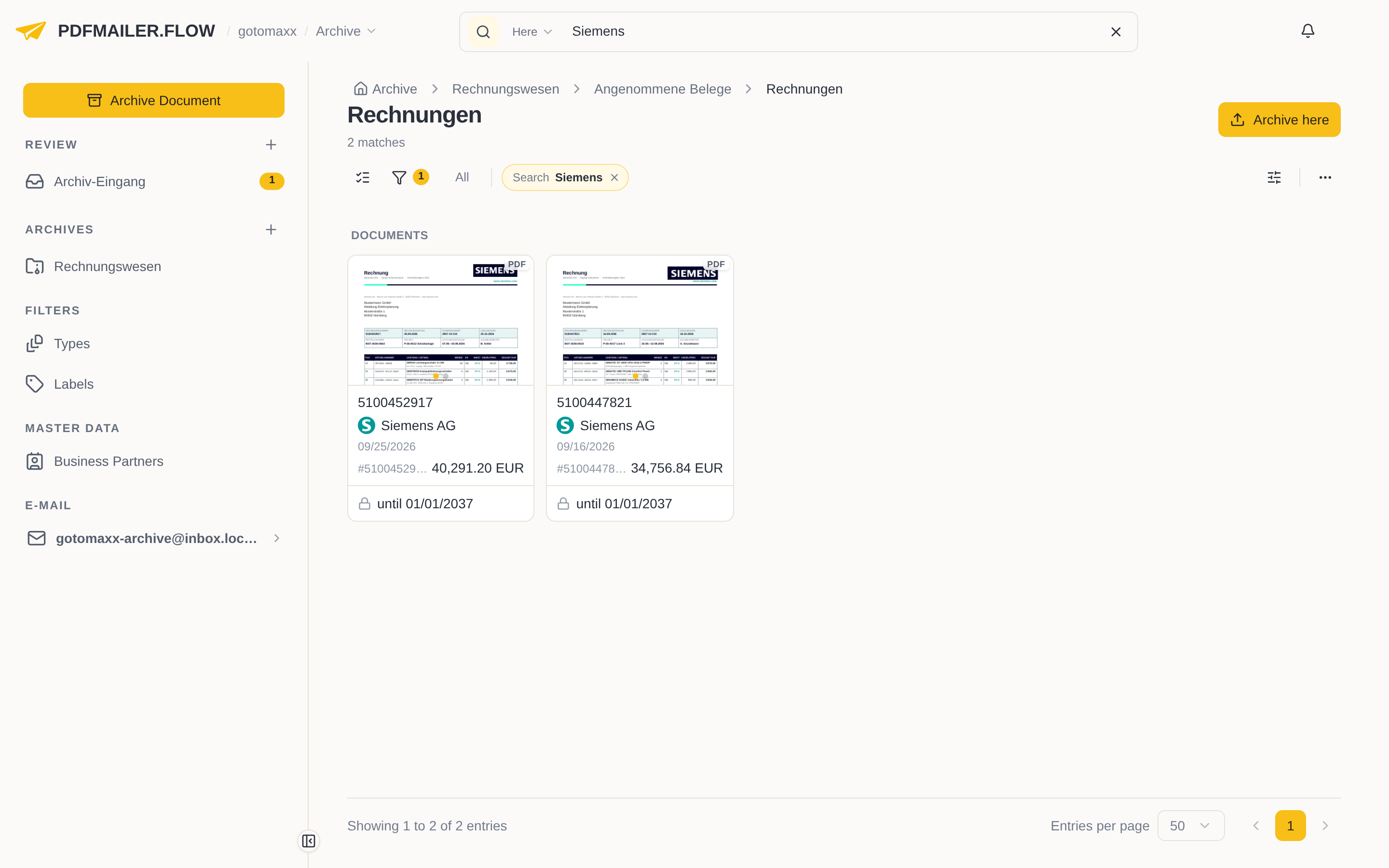
With Here, the folder shows only the hits; above the list the search term is shown, such as “Search Siemens”, and with the × next to it you show all documents again. With Everywhere, the hits appear in a list below the search field; there you narrow them down to certain financial years with Period.
Documents are found whose name, details or files contain the term. Entering the beginning of a word is enough.