Groups and roles
Creating groups, adding users and assigning roles.
In PDFMAILER.FLOW, rights are granted through groups. A group brings users together, for example everyone in accounting. You assign roles to the group, such as Editor for a particular tray, and every member of the group then has these rights. When a new user joins, you add them to the appropriate groups and they receive all the rights they need. You manage groups in Settings under Groups; this requires administrator rights.
Groups are also used to distribute tasks. In a workflow of PDFMAILER.FLOW Document Inbox you can, for example, specify that the review or the approval of a receipt is done by the members of a particular group, such as the group “Invoice review”. The task is then open to all members of this group. Whoever joins the group also receives its tasks.
Create a group
Create a group for each department or task for which the same rights or the same tasks are to apply. When creating it, you specify whether the group represents a department or a task that spans departments; this group type cannot be changed afterwards.
- Click Create Group.
- Enter a name for the group.
- Choose the Group Type.
- Choose the Visibility.
- Click Create.
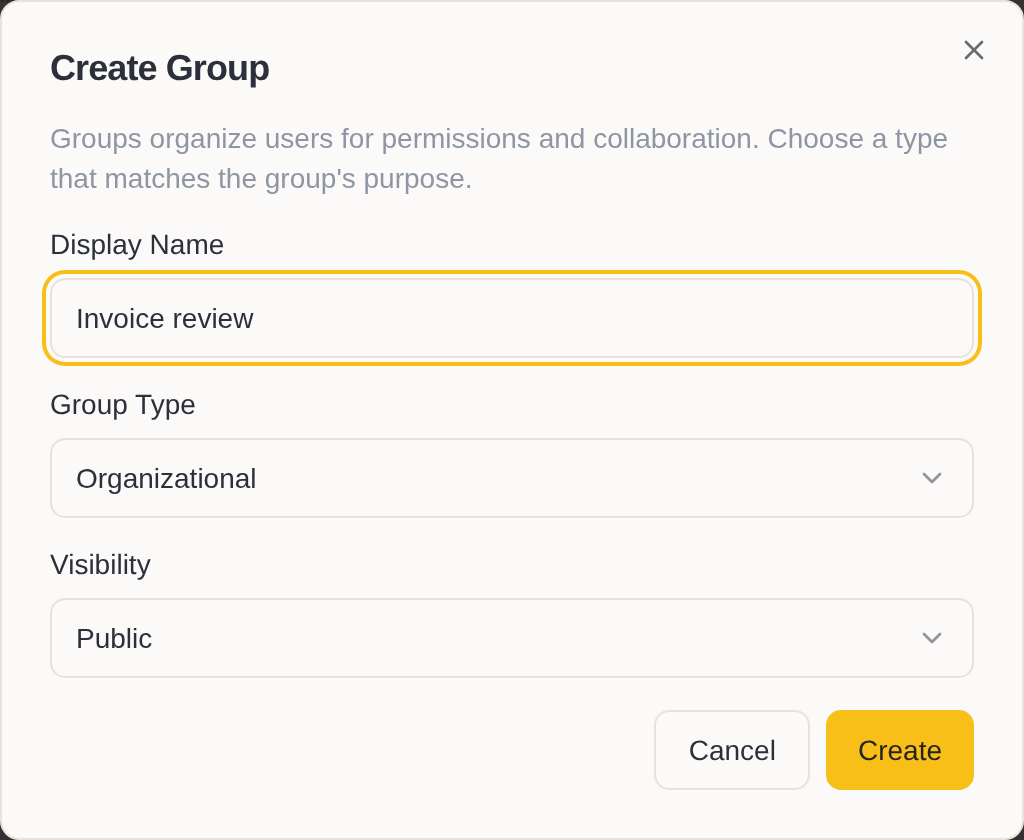
With the Group Type you distinguish between two kinds of group:
- Organizational stands for a department, for example accounting or purchasing. Such a group can contain further groups, so that you can reproduce your department structure.
- Functional stands for a task that spans departments, for example invoice review.
With the Visibility you specify who sees the group in the list: a public group is seen by everyone who may view groups, a private one only by its members and the administrators.
The new group is empty at first and has no rights. Next, add members and assign roles to it.
Add users to a group
Add a user to a group when they need the rights of this group, for example because they are new to the department.
- Click the group in the list to open it.
- On the Members tab, click Add Member.
- Select the users and click Add.
The users have all the rights of the group from now on. You can also add users who have not yet accepted their invitation; they are marked “Pending invitation” and receive the rights as soon as they have joined.
You take a user out of the group again with Remove. Which groups an individual user belongs to can also be seen in the user management on their detail page.
Add a group to another group
A whole group can be made a member of another group. This way you give, for example, all departments together access to a shared archive without adding each user individually.
- Click the parent group in the list to open it.
- On the Groups tab, click Add Group.
- Select the group and confirm.
All members of the added group thereby receive the rights of the parent group. Only groups of the type Organizational can be nested.
Assign a role
A role specifies what the members of a group may do, and where. The same group can have several roles, for example Editor for a tray in PDFMAILER.FLOW Document Inbox and Viewer for the archive. Choose the role that is just sufficient: anyone who is only to look up documents receives the role Viewer.
- Click the group in the list to open it.
- On the Role Assignments tab, click Assign Role.
- Choose the role.
- Choose the Scope: the whole organization (Tenant), a group or a single tray. For a group or tray, enter its name.
- Click Assign.
The members of the group have the new rights immediately. A role always also applies to everything within its scope: a role for a group applies in all trays of this group, a role for a tray also in its sub-trays.
The most important roles:
- Viewer – may view documents.
- Editor – may view, create, edit and delete documents.
- Tray Manager – may create, rename and delete trays.
- Group Manager – may manage the members of a group. This lets you, for example, leave it to a head of department to decide who belongs to her department.
- Admin – may do everything, including managing the organization.
You withdraw a role assignment with Remove. You can only assign roles whose rights you hold yourself at this point.
Delete a group
Delete a group that no longer exists in your organization, for example after a restructuring. Check beforehand whether its members continue to receive the rights through another group.
- In the list, move the mouse over the group and click ….
- Choose Delete and confirm.
All memberships and role assignments are removed with the group. The users themselves are kept, but lose the rights they had through this group.
The groups marked “Built-in”, such as “General”, to which all users belong, are part of every organization and cannot be deleted.