Email mailboxes
Setting up, assigning and deleting email mailboxes.
Through an email mailbox, PDFMAILER.FLOW receives receipts and other documents by email. You set up mailboxes in Settings under Email; this requires administrator rights. There are two kinds of mailbox:
- A System mailbox receives an email address of its own from PDFMAILER.FLOW. It is ready for use immediately.
- An Own email account connects a mailbox you already have with your mail provider, for example invoices@your-company.com. This is useful when your suppliers already write to this address.
Every mailbox belongs to a Group. The group determines where the mailbox can be used: a mailbox of the group Billing supplies PDFMAILER.FLOW Document Inbox, a mailbox of the group Archive an archive inbox of PDFMAILER.FLOW Archive. In addition, only the members of this group see the emails that arrive in it. You choose the group when creating the mailbox; it cannot be changed afterwards.
Set up a system mailbox
A system mailbox is the quickest way to receive receipts by email: you only give it a name, and PDFMAILER.FLOW generates the address from it.
- Click Add mailbox.
- Under Group, choose the group of the area in which you want to use the mailbox, for example Archive.
- Stay on the System mailbox tab and enter a name, for example “Invoices”.
- Under Generated address you see the email address the mailbox receives.
- Click Create.
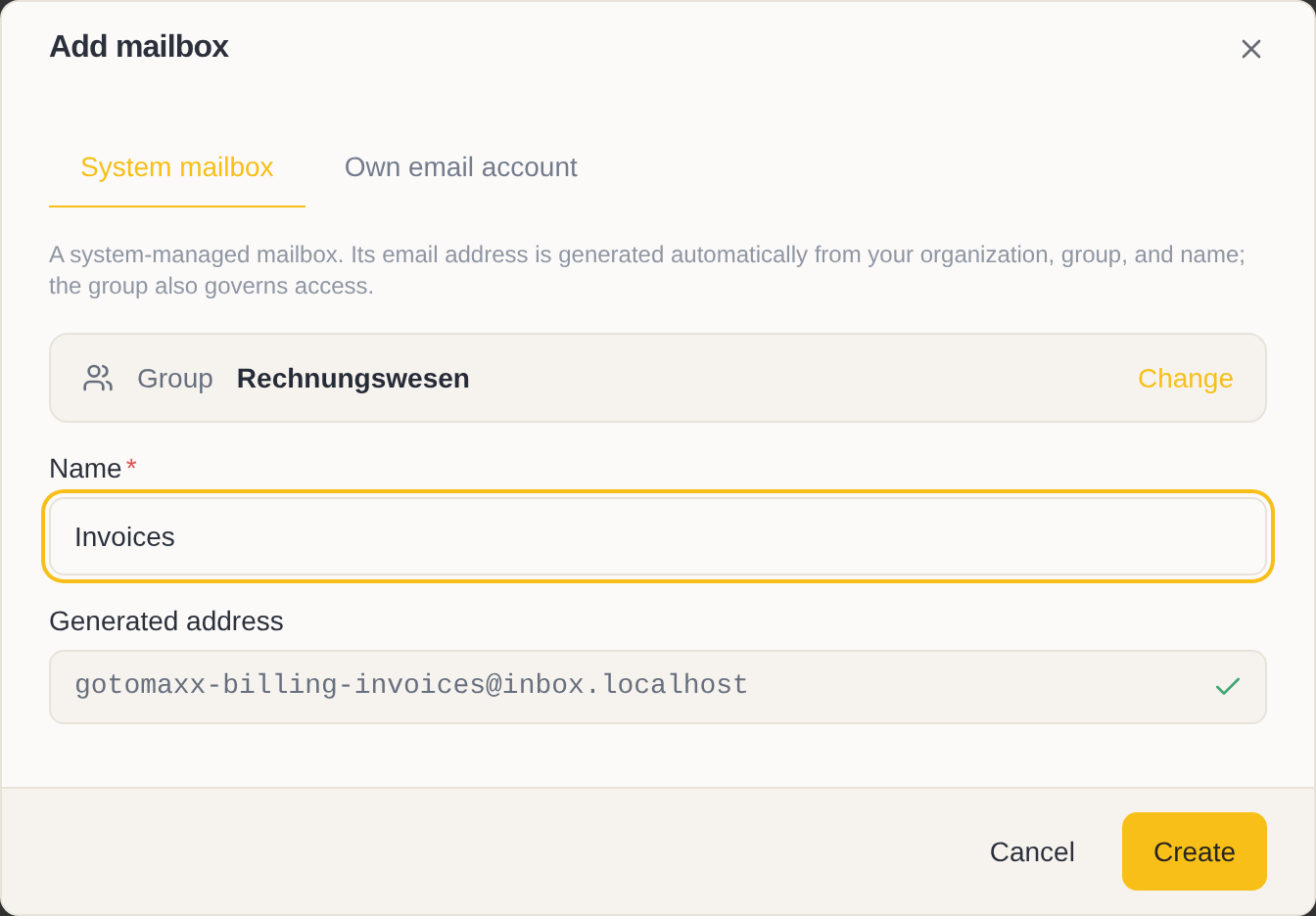
Emails to this address arrive in the mailbox from now on. Pass the address on to your suppliers, or set up forwarding to the generated address in your existing mail program; your suppliers then keep writing to the address they already know.
Connect your own email account
Connect your own account when receipts already go to an address of your company. Have the access details of the mailbox ready: you find server, port and encryption in the documentation of your mail provider or get them from your IT department.
- Click Add mailbox and, under Group, choose the group of the area in which you want to use the mailbox.
- Switch to the Own email account tab and enter a name and the email address.
- Choose the Connection type:
- For Microsoft 365 and Outlook, choose Office 365 and click Connect Microsoft 365. You then sign in with Microsoft; you do not enter a password here.
- For all other providers, choose IMAP/SMTP and enter server, port, encryption, user name and password under Receive (IMAP).
- Click Test connection.
- Choose the folder of your mailbox from which emails are to be taken over. The Inbox is preset.
- Click Create.
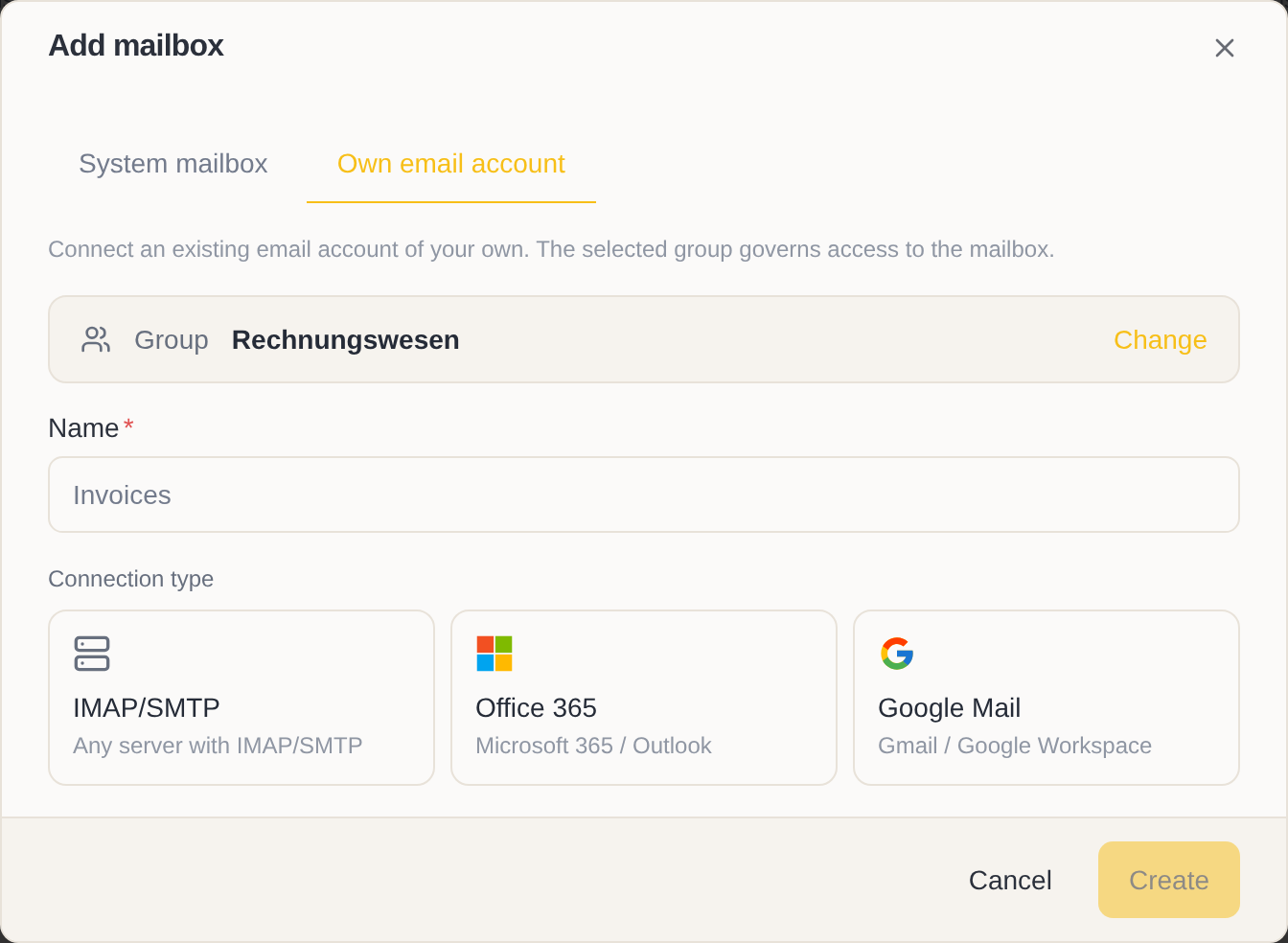
PDFMAILER.FLOW then retrieves the mailbox regularly. On the first retrieval, the emails of the last seven days are taken over.
If PDFMAILER.FLOW is also to send emails through this account, such as acknowledgements of receipt, additionally activate Send (SMTP) and enter the access details for sending.
If the connection test fails, check server, port and encryption. Many providers also require, instead of your normal password, a separate app password that you generate in the account settings of your provider. With Show details you see the exact reason.
Assign a mailbox to an inbox
A new mailbox at first only collects emails. For receipts or archive documents to be created from them, assign it to the inbox in which the documents are to be processed:
- For invoices and other receipts, choose a mailbox of the group Billing in PDFMAILER.FLOW Document Inbox, in the settings of a workflow under Receive by email.
- For documents that are to be archived in PDFMAILER.FLOW Archive, choose a mailbox of the group Archive in the settings of an archive inbox under Edit inbox.
Each email with an attachment then becomes a document for review; the attachments are its files. Only emails with an attachment are taken over. Each mailbox supplies exactly one inbox.
Check whether a mailbox is working
If no new receipts arrive any more, first look in the list of mailboxes. There you can see, for each own email account, when it was last retrieved and whether that succeeded.
- In Settings, open the Email page.
- Look at the Status column for the mailbox:
- With “In sync”, the mailbox was retrieved successfully.
- With “Error”, move the mouse over the status to see the reason. If the password has changed, enter it again.
- “Waiting” means that your mail provider has asked for a short pause. The mailbox then resumes retrieval by itself.
Delete a mailbox
Delete a mailbox through which no more receipts are to arrive, for example because you have switched to a different address.
- In the list, move the mouse over the mailbox and click ….
- Choose Delete and confirm.
The mailbox is thereby deleted and no longer receives or sends emails. Documents that have already been created from its emails are kept.
Mailboxes that were created when your organization was set up cannot be deleted.