Managing labels
Creating, changing and deleting labels.
Labels are used to mark and organize documents: an invoice can, for example, be marked as “Urgent” or a contract given a “Priority”, and every list can then be filtered by them. As an administrator, you specify which labels exist; this way the same terms are used throughout the organization. You manage labels in Settings under Labels; this requires administrator rights.
Create a label
Create a label when documents are to be organized or found again by a characteristic that is not already contained in the document. When creating it, you specify whether the label is only attached or carries a value; this kind cannot be changed afterwards.
- Click New label.
- Enter a name, for example “Urgent” or “Priority”.
- Choose the Kind of label.
- If required, choose a Color so that the label stands out more easily in lists.
- Click Create.
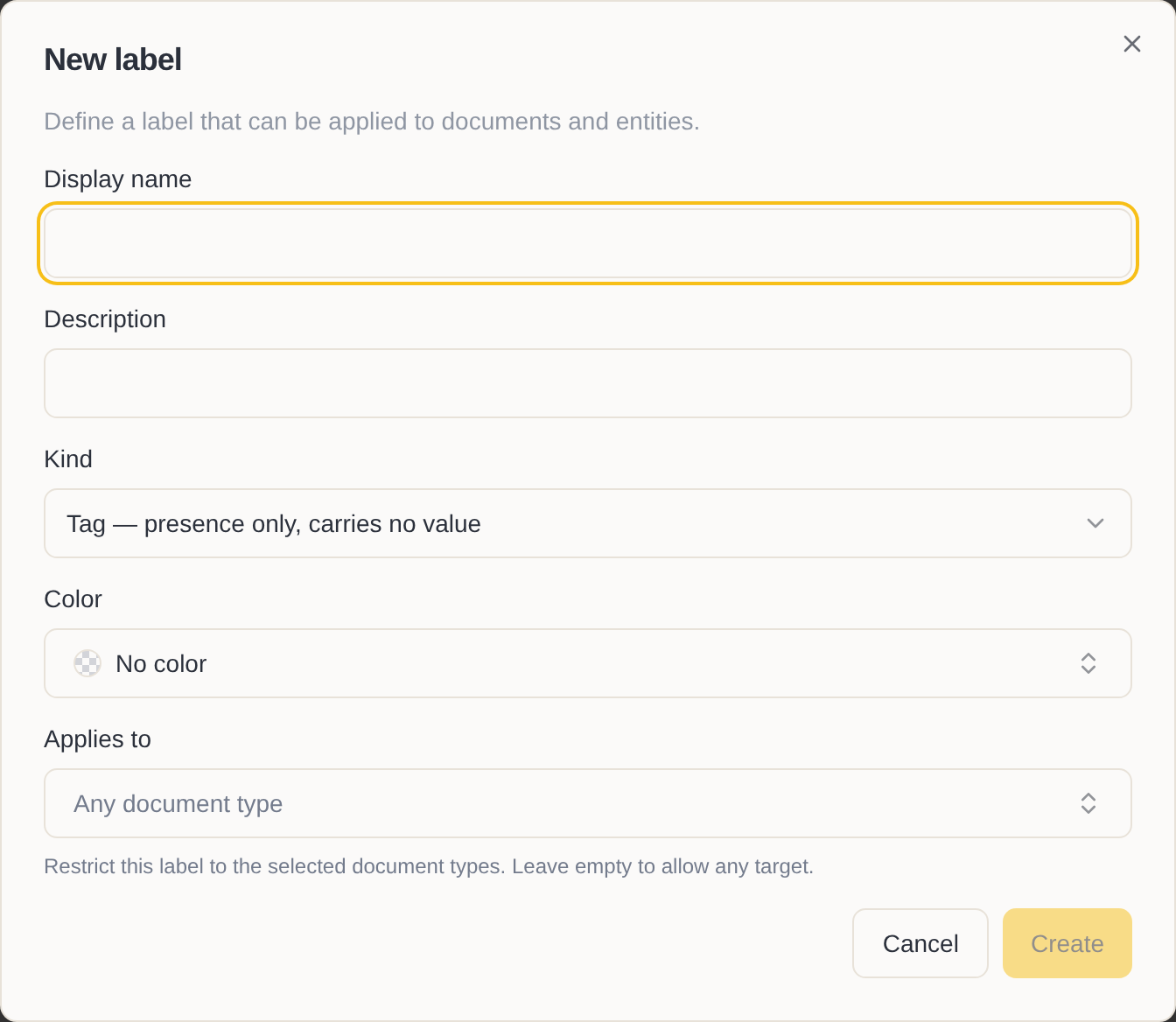
With the Kind you specify whether the label is only attached or carries a value from a list:
- A Tag is either present on a document or not, for example “Urgent” or “Query open”.
- A Set carries a value from a fixed selection, for example “Priority” with the values “High”, “Medium” and “Low”. You create the values with Add value.
The label can then be assigned to documents.
Settings for sets
For a set, you also specify how strict it is:
- Closed – only the values you have created can be chosen. This is the right choice when the values are fixed, as with a priority.
- Open – your values are offered as suggestions; other values can be entered as well. This is suitable, for example, for project names that are added continually.
With Allow multiple values, a document can carry several values at the same time, for example several departments an invoice concerns. This setting cannot be changed later either.
Restrict a label to certain documents
Some labels fit only certain things; a label “Supplier blocked”, for example, makes sense only for business partners. So that it is offered only where it fits, you restrict it.
- Click the label in the list to open it.
- Under Applies to, choose where the label can be assigned: on documents, on business partners or on articles.
- Click Save.
The label is then offered only there. If you leave Applies to empty, it can be assigned anywhere.
Change a label
Change a label when its name is misleading or a set needs new values.
- Click the label in the list to open it.
- Change the name, color or values.
- Click Save.
If you rename a value, all documents that carry it show the new name immediately. Removing a value, on the other hand, is final: documents that carried it then show only its code.
Retire a label
When a label is no longer needed, retire it. It then remains visible on the documents to which it has already been assigned, but is no longer offered for new documents.
- Click the label in the list to open it.
- Change the Status:
- Deprecated – the label is no longer to be used, but can still be chosen. This announces that it is going away.
- Retired – the label is no longer offered.
- Click Save.
Delete a label
Delete a label that was created by mistake or has never been used.
- In the list, move the mouse over the label and click ….
- Choose Delete and confirm.
If the label is not assigned to any document, it is deleted. If it is still assigned anywhere, even to an archived document, it is retired. This way all markings are kept.