Via the archive inbox
Uploading or receiving documents by email, reviewing and archiving them.
An archive inbox is a holding area in front of the archive: documents wait there until someone has reviewed them, assigned them to a folder and document type and archived them. Besides the archive inbox, documents can also be archived directly into a folder. The archive inbox is useful when documents arrive by email, when a colleague is to review them before they are archived, or when you want to upload many files now and sort them later. Because an archived document can no longer be changed, the review in the inbox gives an opportunity to notice mistakes beforehand.
Documents get into an inbox in two ways: you upload them yourself, or they arrive by email at the inbox's mailbox. You find the inboxes in the archive's sidebar under Review; the number next to an inbox shows how many documents are waiting for you there. Which inboxes you see depends on your rights.
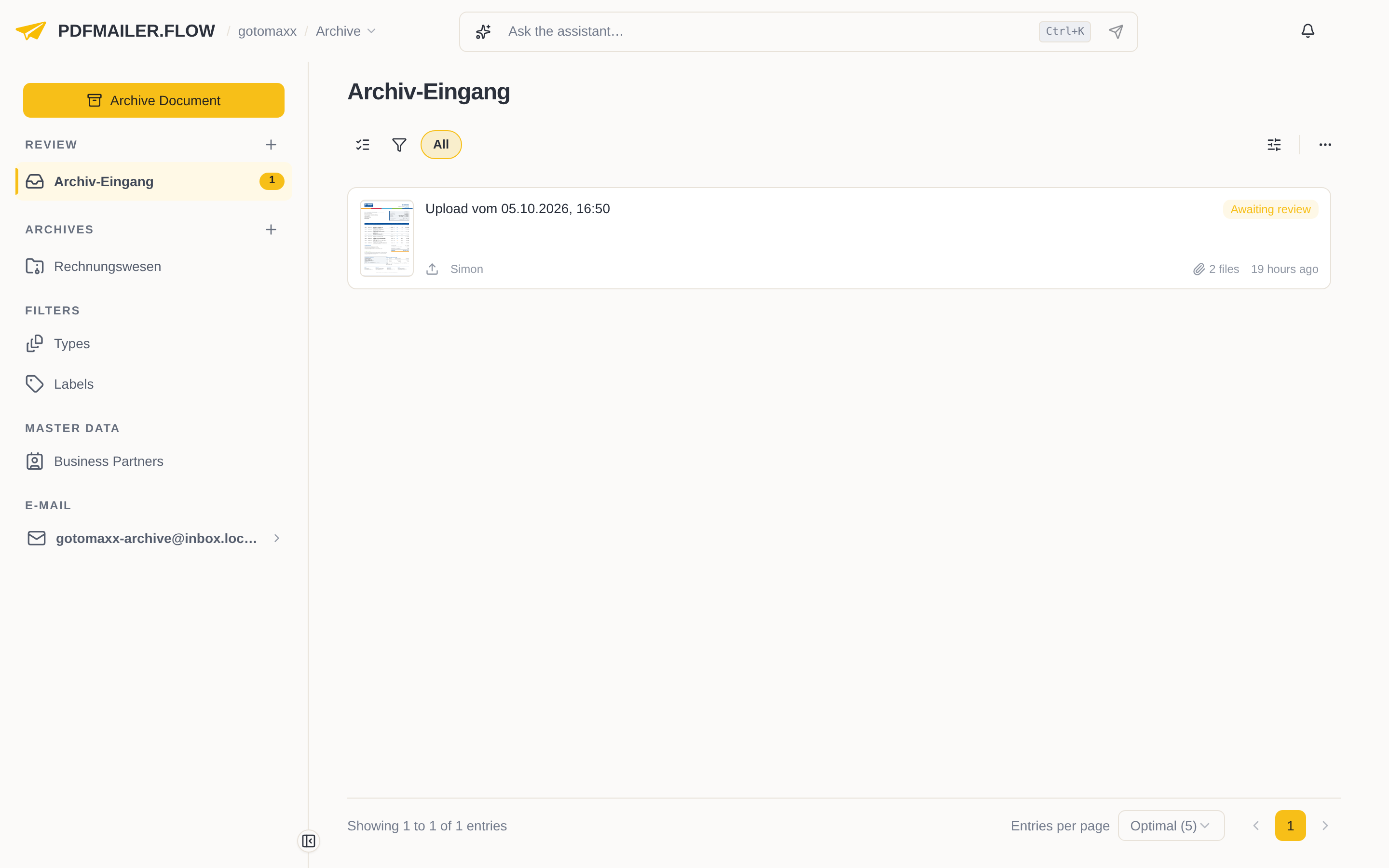
Upload documents
Documents that arrive by email land in the inbox by themselves if a mailbox is assigned to it: every email with an attachment becomes a document. Paper documents you have scanned, or files from your computer, you upload yourself.
- At the top of the sidebar, click Archive Document.
- Drag the files into the window, or click browse and select them.
- Under Inbox, choose the inbox in which the document is to be reviewed.
- Click Upload file or Upload files.
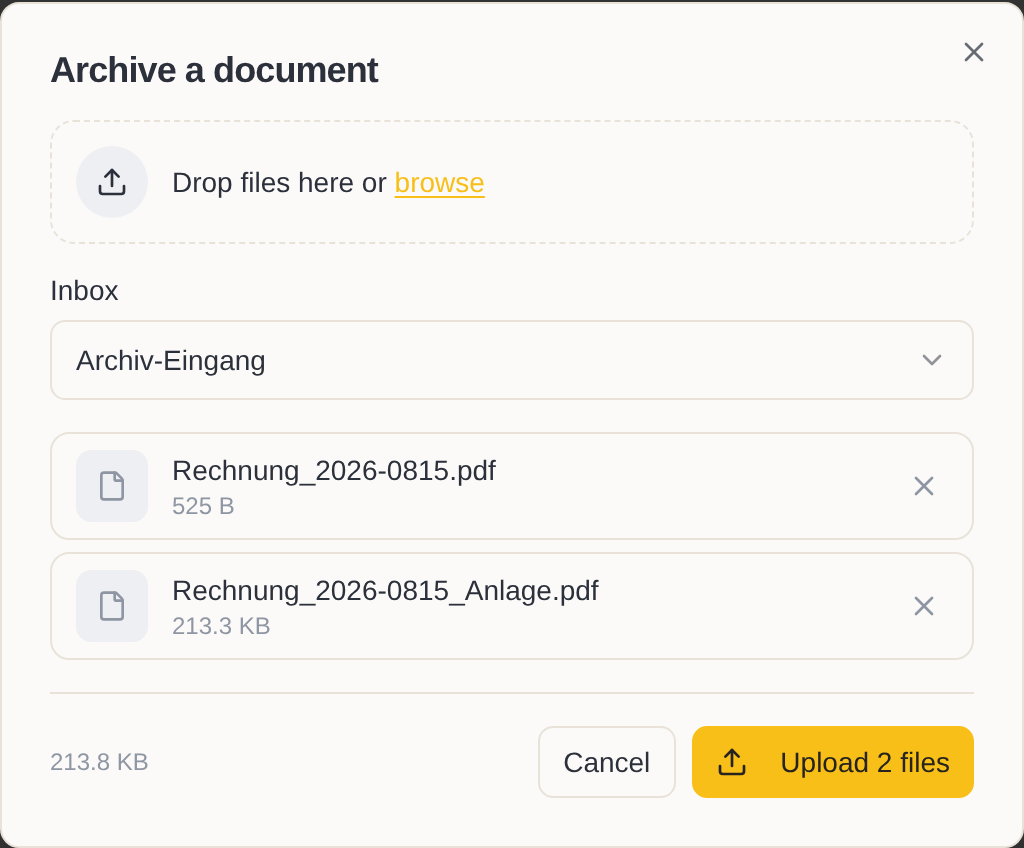
The inbox then opens with the new document, and you can review it right away. All files you upload at once initially form one document together in the inbox. During the review you decide whether they are archived together in one document or each file as a document of its own, see Archive a document with several files. You can upload PDF files, images, saved emails and Office documents.
Review and archive a document
Review every document before you archive it: if name, folder and document type are right, it can be found again later, and it is retained for as long as it has to be.
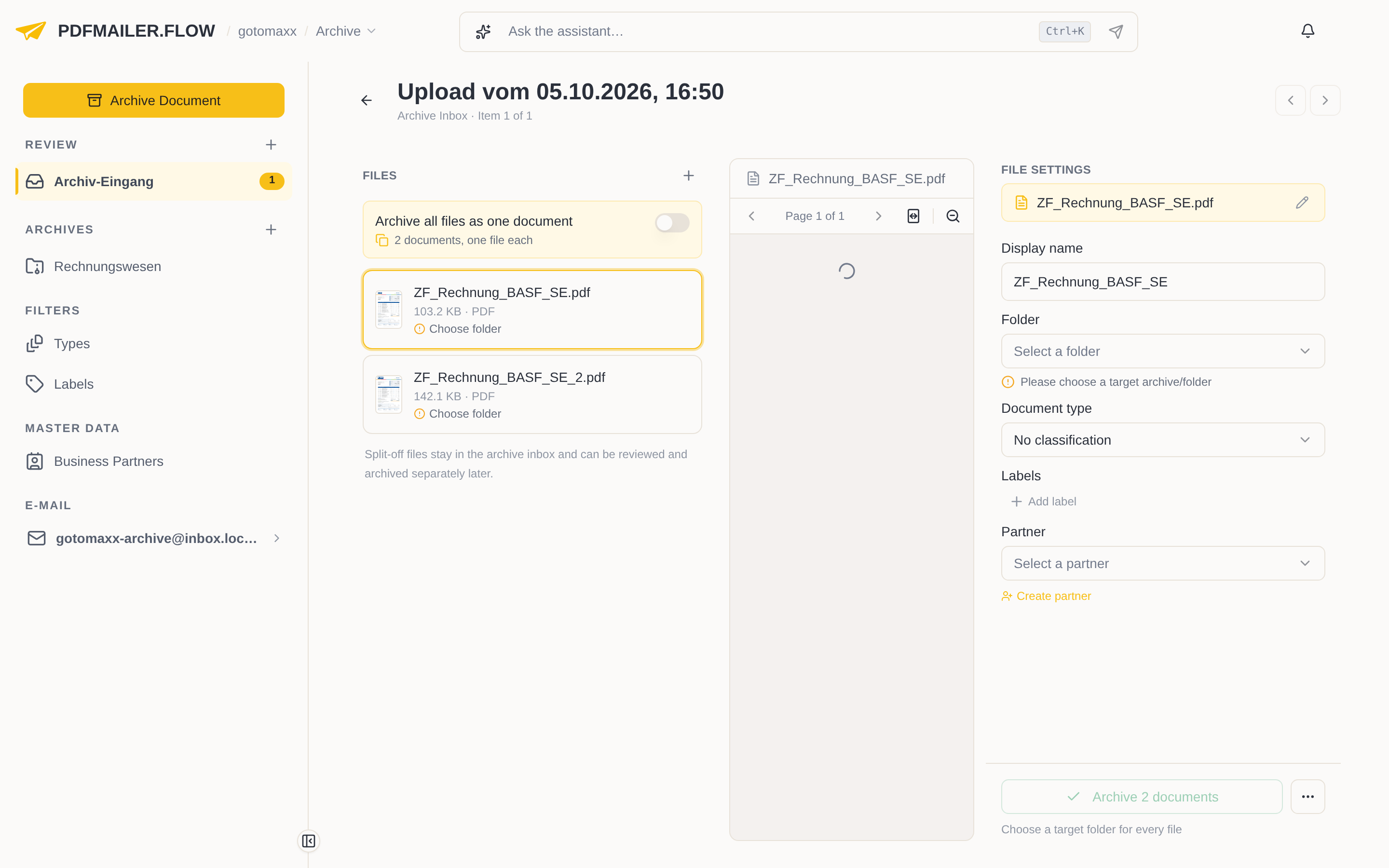
- In the inbox, click the document. The review view shows the Files on the left, the preview of the selected file in the middle and the File settings on the right.
- Check in the preview that it is the right document.
- If needed, adjust under Display name the name under which the document appears in the archive.
- Under Folder, choose the folder you want to archive the document in.
- Under Document type, choose the matching type. It determines how long the document is retained, see Retention periods.
- If needed, assign Labels or choose the business partner under Partner, so that you can find the document more easily later.
- At the bottom right, click Archive document.
The document is now archived in the chosen folder. With the arrows at the top right you go straight to the next document in the inbox.
If the inbox has defaults for folder and document type, these fields are already filled in. Still check the details carefully before you archive: an archived document can no longer be changed and cannot be brought back into processing.
Archive a document with several files
If an email arrives with several attachments, the document in the inbox contains several files. During the review you decide whether these files are archived together in one document or each file as a document of its own. By default each file is archived as a document of its own; the button is then called Archive documents.
- In the inbox, click the document.
- Decide how the files are archived:
- If they belong together, for example an invoice with its enclosures, switch on Archive all files as one document. You then choose the folder and document type once for all of them.
- If they are independent documents, such as three different invoices in one email, leave the switch off. On the left, click each file in turn and choose its folder and document type on the right. Every file that still lacks a folder shows “Choose folder”.
- At the bottom right, click Archive document or Archive documents.
Remove a file from a document
Not every file that arrives with an email belongs in the archive: for example the company logo from the signature, a promotional leaflet or an attachment that belongs to another matter. You take such a file out of the document before archiving. Depending on whether it is still needed, you delete it or split it off.
- In the inbox, click the document.
- On the left under Files, move the mouse over the file.
- Choose what is to happen to the file:
- If it is not needed, click the trash can icon (Delete file) and confirm.
- If it belongs to another matter, click the arrow icon (Split and process separately).
A deleted file is permanently removed from the document and not archived. A split-off file appears under Process separately later, stays in the inbox and is reviewed later as a document of its own; with Put back you bring it back into the document.
If, on the other hand, a file is missing from the document, add it with + next to Files.
Archive several documents at once
If there are many documents of the same kind in the inbox, such as a month's bank statements, you archive them together in one step.
- In the inbox list, select the documents.
- Click Approve selected.
- Choose the folder you want to archive all the documents in.
- Click Approve and archive.
The selected documents are now archived in the chosen folder. A document that someone else is currently working on is skipped and stays in the inbox.
Delete a document from the inbox
If a document does not belong in the archive, such as advertising or a duplicate, delete it from the inbox instead of archiving it.
- In the inbox, click the document.
- At the bottom right, next to the archive button, click … and choose Delete.
- Confirm.
The document is moved to the recycle bin. You reject several documents by selecting them in the list, clicking Reject selected and giving a reason.